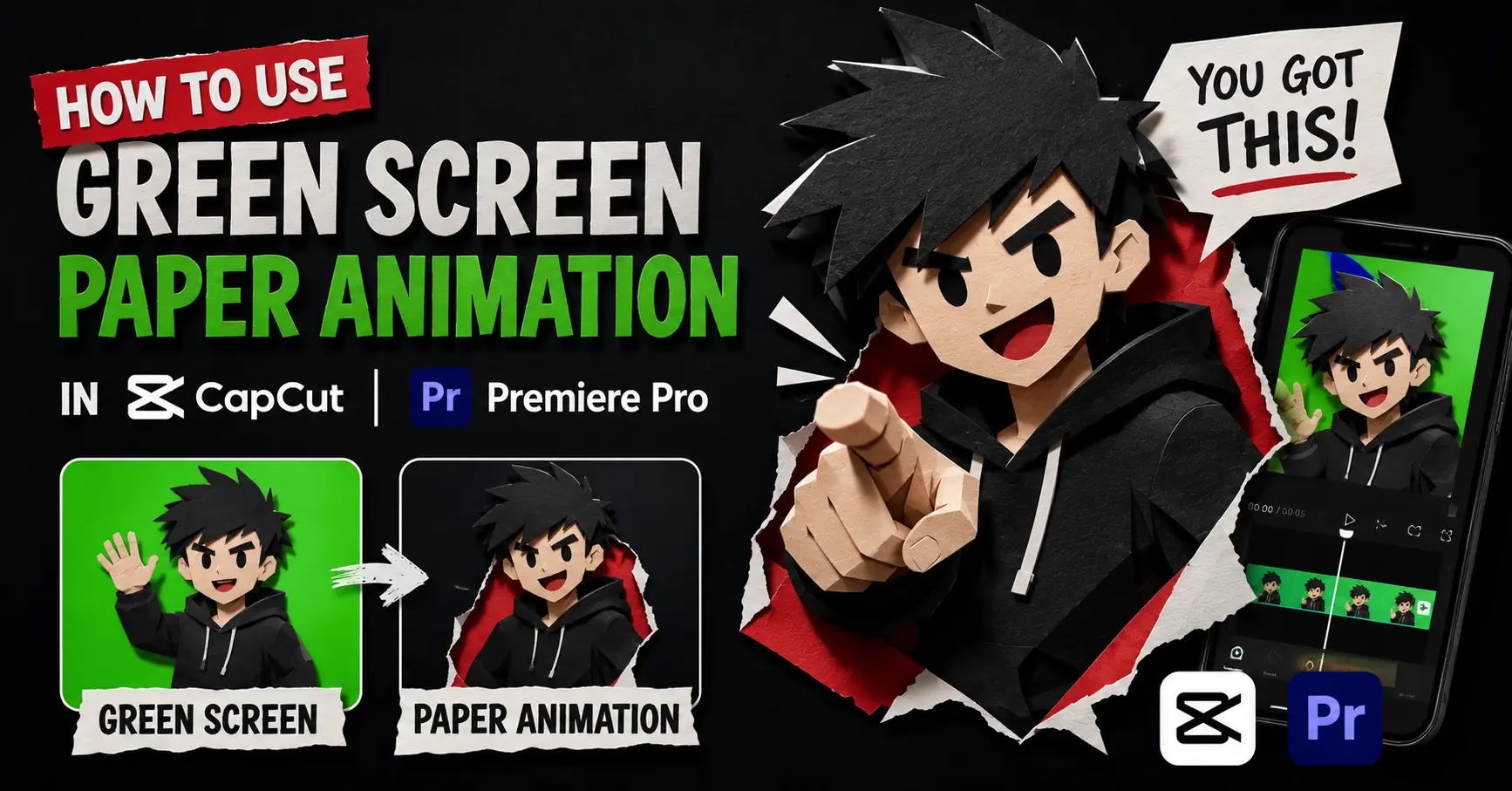
How to Use Green Screen Paper Animation in CapCut and Premiere Pro
Most people think green screen is something only big studios use. It is not. A phone, a free editing app, and a WebM export from PaperAnimators.in are all you need. This guide shows you exactly how green screen paper animation works inside CapCut and Adobe Premiere Pro, step by step.
No expensive gear. No studio setup. Just a file and two minutes.
What a Green Screen Export Actually Does
When you export a green screen file, the background behind your subject fills with bright green instead of going transparent. Inside your video editor, you remove that green and replace it with any background you want.
Paper Animator uses this method for animated files because movement makes transparent exports harder to handle in most editing apps. A solid green background keys out cleanly in both CapCut and Premiere Pro. That is why most creators working with animated paper cut-outs prefer this method over transparent WebM.
Film colorist Alexis Van Hurkman, author of Color Correction Handbook, notes that a clean, evenly lit green background produces the most accurate key. PaperAnimators.in generates a perfectly even digital green so you never have to worry about lighting inconsistencies.
What You Need Before You Start
- A free account on PaperAnimators.in
- Your paper animation exported as a green screen WebM file
- CapCut on your phone or desktop, or Adobe Premiere Pro on your computer
- A background video or image to place behind your paper animation
No Photoshop, no plugins, no paid subscriptions needed at any stage.
How to Export the Green Screen File From PaperAnimators.in
This step happens before you open any video editor.
Open PaperAnimators.in and upload your image. Apply your paper effect and pick a movement option from the editing studio. When the design looks right, open the export panel and select the Green Screen option. The tool generates a WebM file with your animated subject on a bright green background.
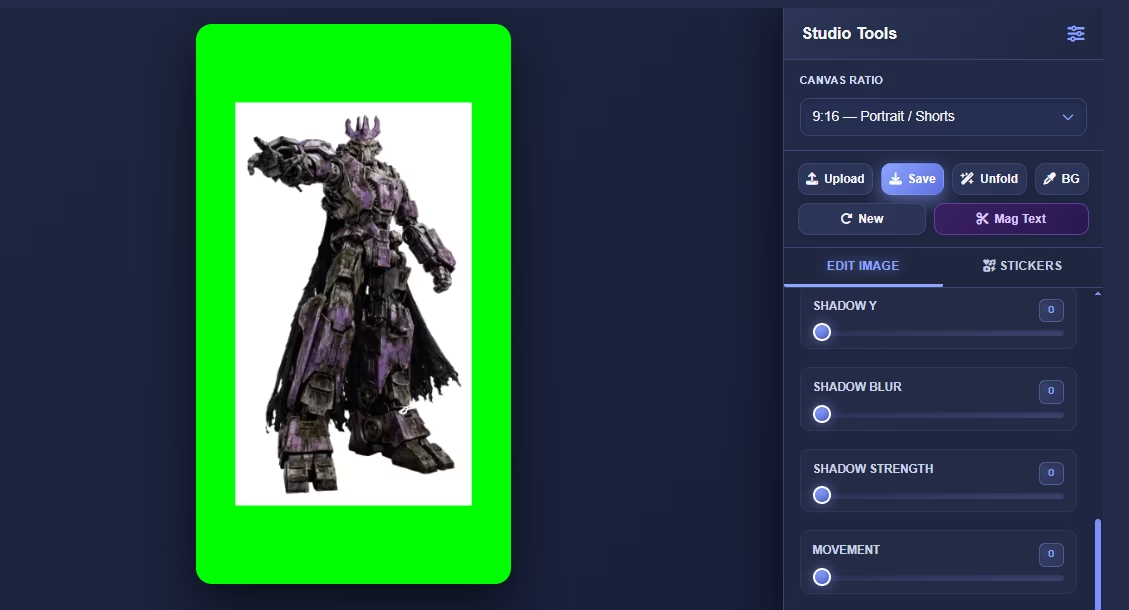
Save that file to your device. This is what you bring into CapCut or Premiere Pro next.
Using Green Screen Paper Animation in CapCut
CapCut is free, works on mobile and desktop, and removes green backgrounds through a feature called Chroma Key. The whole process takes about two minutes once you know where everything is.
Step 1: Start a New Project and Add Your Background
Open CapCut and tap the plus icon to create a new project. Import the background video or image you want behind your paper animation. This background goes on the main timeline first before anything else.
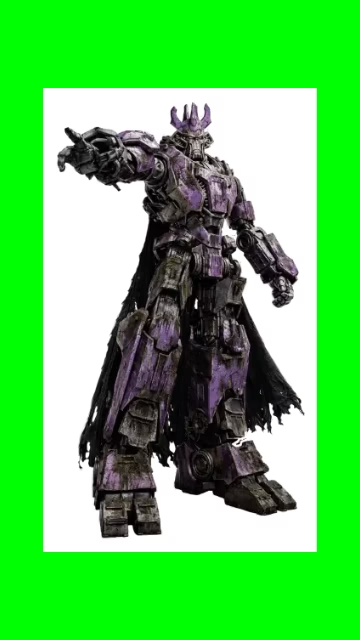
Step 2: Add Your Paper Animator File as an Overlay
Do not add the green screen WebM to the main timeline. Tap Overlay at the bottom of the screen, then tap Add Overlay. Select your WebM file and CapCut places it as a layer above your background. Resize and reposition the overlay until your animation sits exactly where you want it in the frame.
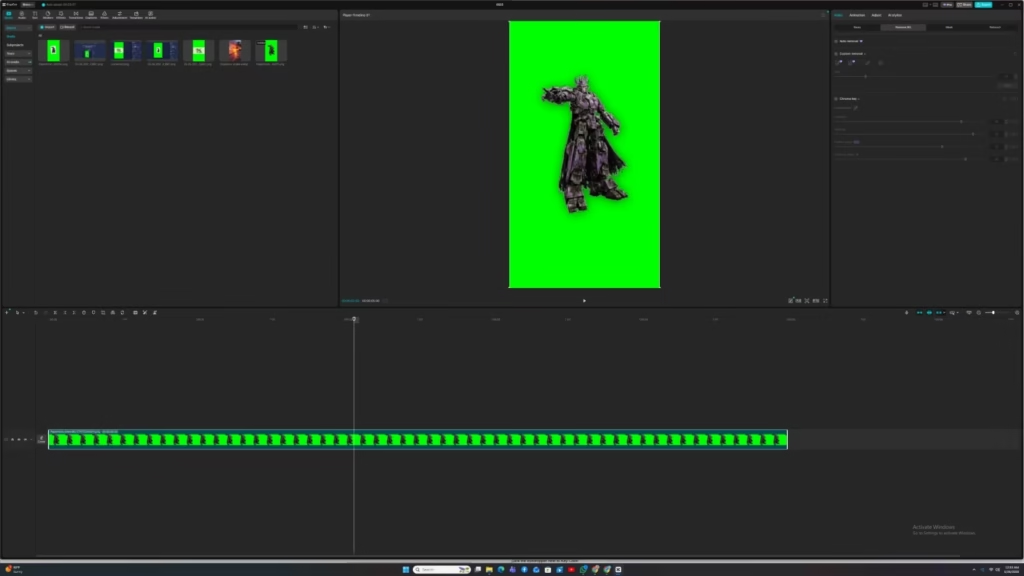
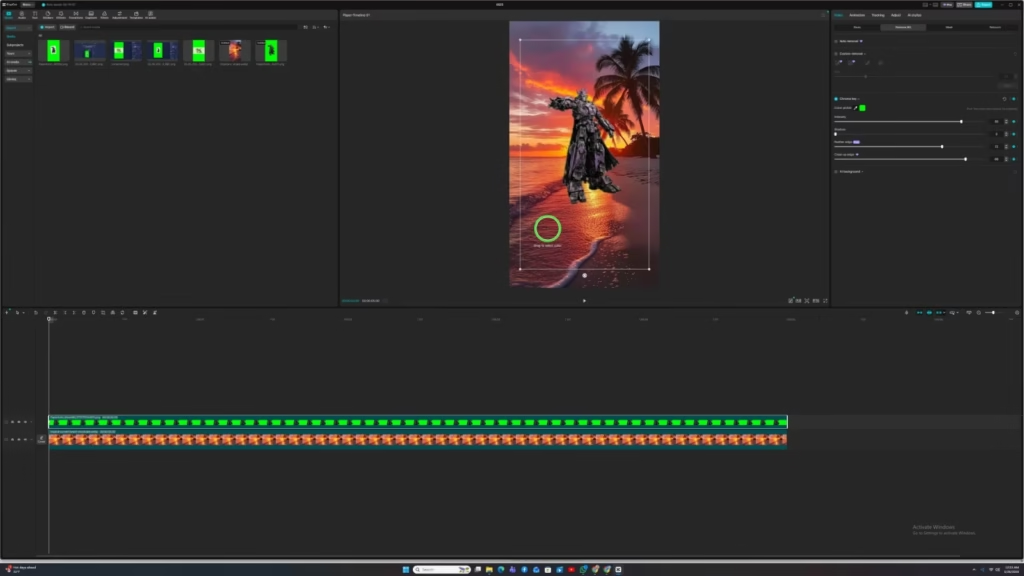
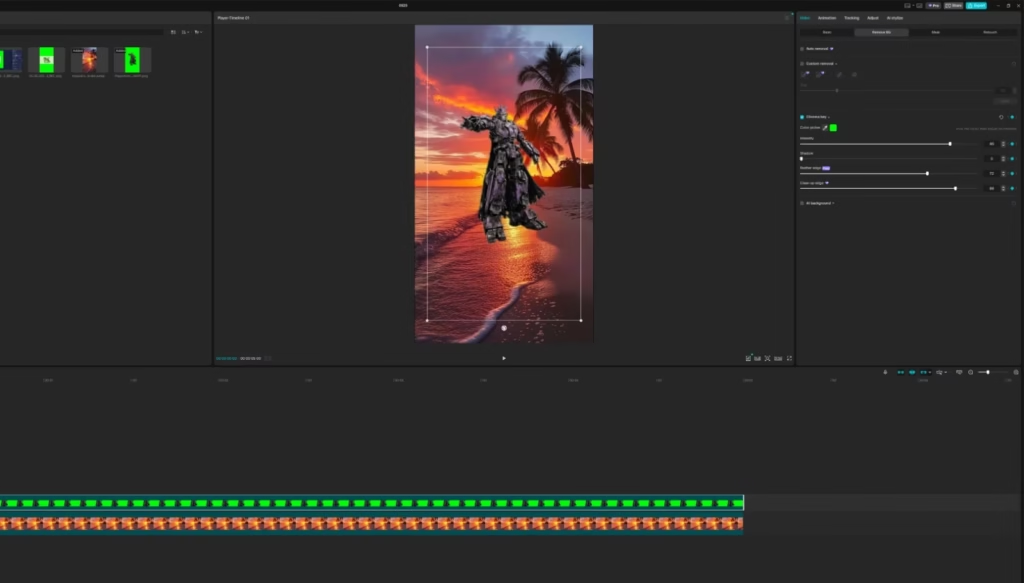
Step 3: Remove the Green With Chroma Key
With the overlay selected, scroll the editing options at the bottom until you find Chroma Key. Tap it. A colour picker appears. Drag the picker onto the green area of your file. CapCut removes all matching green pixels immediately, leaving only your paper animation over the background beneath.
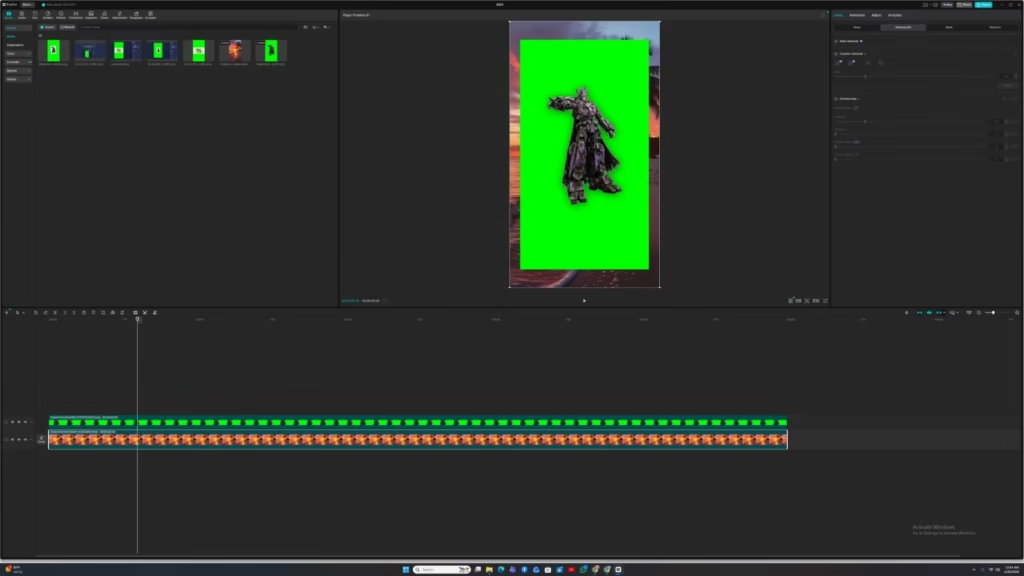
Step 4: Fine-Tune With the Strength and Shadow Sliders
Two sliders appear after the green removes.
Strength controls how hard CapCut removes the green colour. If green edges still show around your animation, raise the Strength slider gradually until they disappear.
Shadow controls how the edges of your subject blend into the background. A small amount makes the animation look like it belongs in the scene. Move both sliders slowly and watch the preview while you adjust.
Step 5: Export From CapCut
Once the animation sits cleanly on the background, tap Export in the top right corner. Choose your resolution and frame rate, then tap Export again. CapCut saves the finished video straight to your device.
Using Green Screen Paper Animation in Adobe Premiere Pro
Premiere Pro uses a tool called Ultra Key for green screen removal. It gives more precise control than CapCut and works better for longer videos, cinematic projects, or anything where edge quality matters.
Step 1: Import Files and Build Your Timeline
Open Premiere Pro and create a new project. Go to File, then Import, and bring in your background footage and your WebM file. Place your background on Video Track 1. Place the green screen file on Video Track 2, directly above it. The green screen clip must sit on the higher track for keying to work correctly.
Step 2: Apply Ultra Key
Go to the Effects panel. Open Video Effects, then open the Keying folder. Find Ultra Key and drag it onto your clip on Video Track 2. The Ultra Key controls appear in the Effect Controls panel on the left side of your screen.
Step 3: Pick the Green With the Eyedropper
In the Effect Controls panel, find the Ultra Key section. Click the eyedropper next to Key Color. Then click the green area of your file in the program monitor. Premiere Pro removes all matching green pixels and your animation appears over the background on Track 1.
Step 4: Clean Up the Edges
Switch the Output setting from Composite to Alpha Channel. You see a black and white preview. White shows your visible paper animation. Black shows the removed background. Any grey areas mean the key needs more work.
Pedestal handles semi-transparent edges. Raising it slightly removes leftover green fringing around your subject.
Choke tightens the edges and removes thin green halos that sometimes appear around detailed paper cut-out borders. When the preview shows clean white for your subject and clean black for the background, switch Output back to Composite.
Step 5: Export From Premiere Pro
Go to File, then Export, then Media. Choose H.264 as your format. This is the standard choice for social media and YouTube content. Click Export and Premiere Pro renders the finished video.
Tips for Cleaner Results
Start with clean background removal inside PaperAnimators.in before exporting your green screen paper animation file. Stray pixels from a messy cut-out make the keying step much harder in your editor. Ten extra seconds of cleanup before export saves several minutes of fixing later.
Match your frame rate. If your video project runs at 30fps, export the animation at 30fps too. Mismatched frame rates cause the paper animation to stutter and look out of sync.
Add a soft drop shadow after keying. PaperAnimators.in already adds a shadow to the cut-out but a second soft shadow inside CapCut or Premiere Pro after keying makes the animation feel grounded in the scene. Creators in Chennai, Jaipur, and Kolkata who run talking-head YouTube channels use this technique to make paper cut-out overlays look like part of the actual footage.
Export at the highest resolution the tool offers. More pixel detail means cleaner edges when your editor keys out the background.
Frequently Asked Questions
What File Format Does PaperAnimators.in Use for Green Screen Export?
PaperAnimators.in exports green screen files as WebM. Both CapCut and Premiere Pro import WebM directly without any conversion needed.
Can I Use This Export in Other Video Editors?
Yes. Any editor that supports Chroma Key or green screen removal works with these exports. DaVinci Resolve, Final Cut Pro, and iMovie all handle WebM green screen files without issues.
Why Are Green Edges Still Showing in CapCut After Chroma Key?
The Strength slider needs to go higher. Raise it in small steps while watching the preview. If edges stay rough after that, tap the colour picker again and select a slightly different spot on the green background.
Is the Green Screen Export Free on PaperAnimators.in?
Yes. Green screen paper animation export is completely free on PaperAnimators.in. No payment or account upgrade needed at any point.
CapCut or Premiere Pro — Which One Should I Use?
CapCut works well for short social media videos and is the faster option for beginners. Premiere Pro gives more control over edge quality and suits YouTube videos, longer projects, or anything where the final output needs to look polished. Start with CapCut if you are new to this and move to Premiere Pro when you need finer control.
About the Author
Abdual Qayyum is based in India. He created PaperAnimators.in to give video creators a simple way to make paper animation graphics without needing design software. For questions, visit the Contact page.
PaperAnimators.in helps content creators make animated paper graphics for YouTube, TikTok, Instagram, and beyond, completely free.