How to Animate a Paper Cut PNG Instead of Leaving It Static
Abdual Qayyum, Content Creator & Digital Designer | Last Updated: June 2026 | Reading Time: 7 min
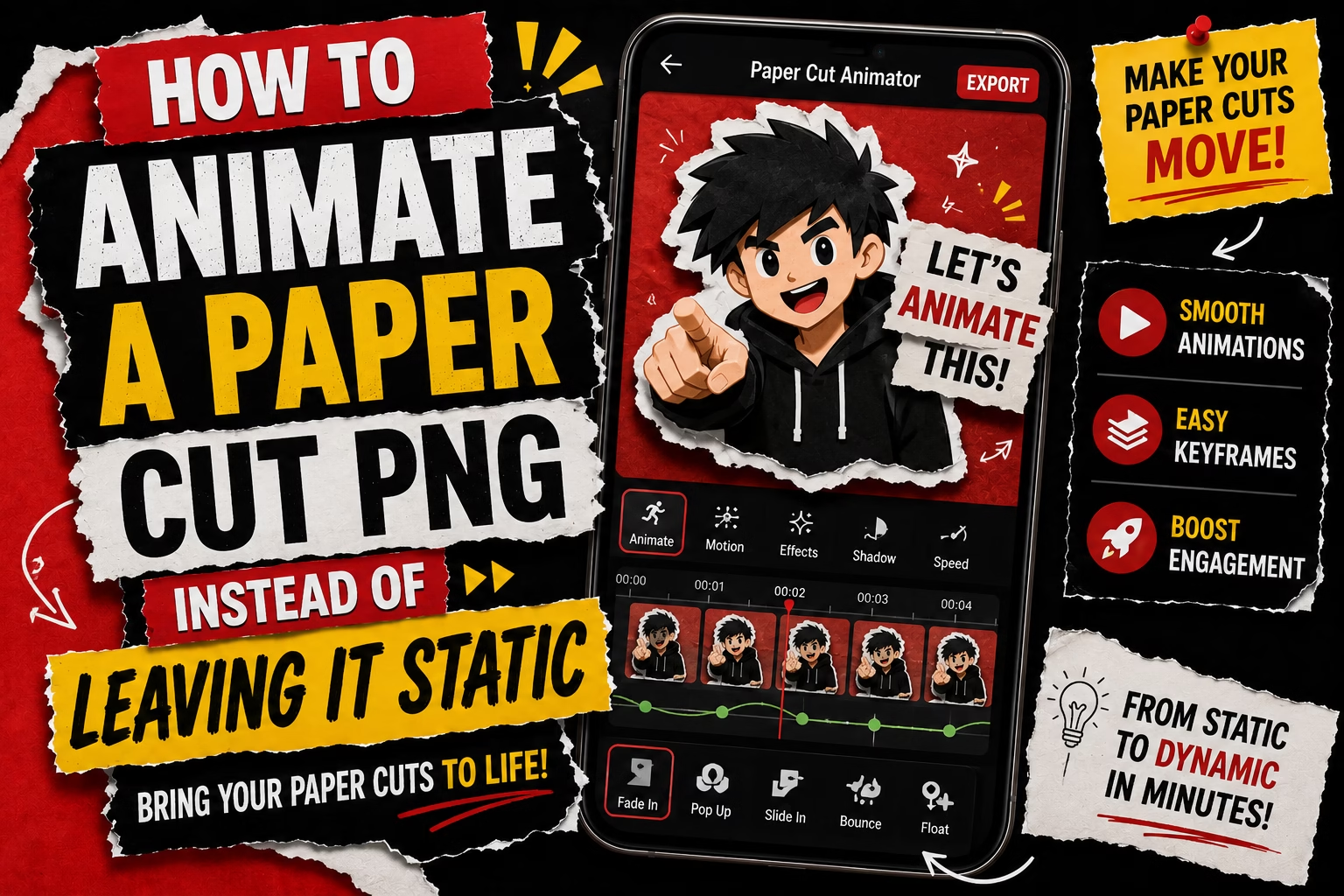
A paper cut PNG on its own is a still image, torn edges and shadow, but frozen. If you have made one and it looks right but feels flat sitting there, the missing piece isn’t a different tool, it’s motion. PaperAnimators.in lets you animate a paper cut png using the same settings you already used to create it, with no separate export step or second tool required.
The cut-out and the movement are not separate steps
A static paper cut PNG and an animated one come from the same process, not two different tools. Once the torn edges, shadow, and texture are set the way you want, the movement slider applies directly on top of that same result. The subject that was cut moves the same way it looked when it was still, just with the wobble added, and there’s no rebuilding the image or re-uploading anything to get there.
What the movement actually does, and where it does not bend
The boil effect is a subtle frame-by-frame wobble, the kind of imperfect shake you would get from real stop-motion paper animation shot by hand, not a smooth digital slide. It applies to the whole cut-out at once rather than moving individual parts independently.
One thing worth knowing before starting: the animation’s duration is fixed and isn’t something you can adjust. There’s no loop-length setting to stretch it longer or trim it shorter, so if a specific timing matters for what you’re building, that’s a real constraint to plan around rather than something to search the panel for.
The effect also doesn’t favor simple shapes over detailed ones. A basic icon-style cut-out and a complex photo silhouette both take the wobble the same way, with no quality drop-off on the more detailed one, so the shape of what’s been cut isn’t something to worry about before adding movement.
Choosing between PNG, GIF, and WebM for this specifically
The three export formats split cleanly by whether movement is involved. PNG stays for the static, unmoving version, no motion applied. GIF is specifically for the version with movement applied, the looping animated file most people expect when they think “animated paper cut.” WebM also carries the movement, but works better as a video overlay element rather than something dropped in as a standalone image.
None of the three differ in visual quality, the cut-out looks the same regardless of which one is chosen. The real difference between them is file size, and picking the right one is really a question of where the file is going next rather than which looks better.
There’s a walkthrough video on the PaperAnimators.in homepage covering this entire process step by step, worth watching once if seeing the movement applied in real time makes more sense than reading about it.
Make a paper cut PNG first if you don’t have one yet, then come back to this once you’re deciding whether to add movement to it.
A Few Things People Ask Before Trying This
Does the movement affect the shadow, or just the cut-out edges?
Both. The shadow moves along with the subject rather than staying fixed underneath it, which is part of what makes the wobble read as one physical object shifting rather than a flat image with a static shadow behind it.
Is there a file size or resolution limit on the GIF or WebM export?
No. There’s no cap on file size for either export format.
Can the movement be turned off after it’s already been applied?
Yes. It isn’t a one-way choice made at the start. The movement can be switched on or off at any point in the same session, so it’s possible to preview the animated version, decide the static cut-out actually looks better, and turn it back off without starting the whole design over.
Does the animation loop seamlessly, or is there a visible jump when it repeats?
It loops seamlessly. There’s no reset or jump cut between the end of one cycle and the start of the next, which matters for anything meant to play on repeat, like a Story or a looping sticker, rather than a single one-time playback.
Can more than one animated cut-out be combined into a single export?
No, the tool supports one subject moving at a time per export. Multiple animated cut-outs would need to be combined afterward in a separate video or design tool rather than built together in one export here.