Product Ad Video Maker Free — No Signup, No Login
Abdual Qayyum, Content Creator & Digital Designer | Last Updated: June 2026 | Reading Time: 8 min
Your product photo is sitting on your phone, well-lit, clean, ready to sell, and completely still. Meanwhile every ad in your feed is moving. Booking a photoshoot for one product costs more than most small sellers make in a week, and most so-called free ad makers ask for an account before they let you download anything. This product ad video maker free tool skips that entirely, no signup, no credits, just a photo and a finished video.
Why a Genuinely Free Tool Is Rarer Than It Sounds
Most tools that call themselves free still ask for an account before letting anything download, or hand over a handful of credits that run out after one or two exports. This one doesn’t. Upload a photo, pick a style, type your text, and the finished video downloads directly, with nothing gating the step in between.
What Actually Happens to Your Photo
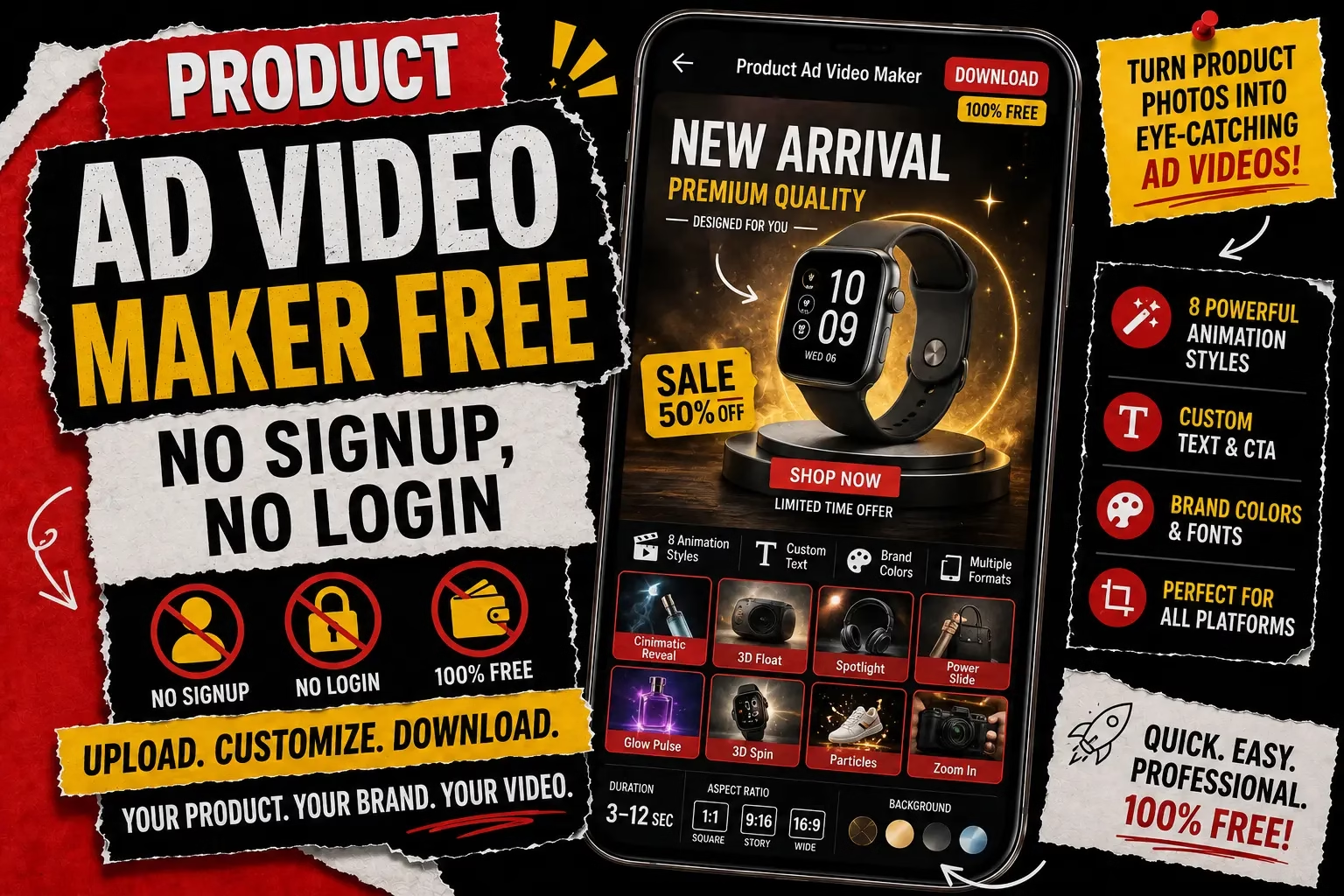
Upload a product photo, ideally with a clean or transparent background rather than a busy scene, since the tool works with the product as its own subject rather than isolating it from clutter first. From there, pick one of eight animation styles: Cinematic Reveal, 3D Float, Spotlight, Power Slide, Glow Pulse, 3D Spin, Particles, or Zoom In.
What Each of the 8 Ad Animation Styles Actually Does
Each style produces a genuinely different result, not a re-skin of the same motion, and knowing what each one actually looks like beforehand saves a few wasted generations.
Cinematic Reveal zooms out to reveal the product with the ad text, “New Arrival,” “Sale,” or whatever’s typed in, appearing alongside it, closer to how a product gets unveiled in a trailer than a straightforward product shot. 3D Float keeps the product gently rising and falling in place, a soft up-and-down motion that suggests weightlessness rather than aggressive movement. Spotlight adds a moving light effect across the product’s surface, drawing the eye across its shape without moving the product itself. Power Slide brings the product in from the side, holds briefly, then slides out and back in again, the same in-and-out rhythm seen in most scrolling feed ads rather than a single static entrance.
Glow Pulse builds a soft glow that pulses around the product, useful for making something feel premium or eye-catching without any actual movement of the product’s position. 3D Spin rotates the product through a full turn before settling to show the complete image alongside the ad text. Zoom In pushes the camera closer into the product over the course of the clip, drawing attention toward detail rather than moving the product itself. Particles adds small floating particle effects around the product, giving it a bit of visual energy without changing the product’s position or shape.
Whichever style gets chosen, the ad text underneath carries through the same way. There’s no fixed phrase forced on any of them; “New Arrival,” “On Sale,” or anything else specific to what’s actually being sold shows up exactly as typed.
Adding Text That Isn’t Locked to a Template
The headline, tagline, and CTA button fields aren’t fixed presets, whatever gets typed in is what shows up in the finished video. That matters more than it sounds like it should, since a lot of free ad makers hand you a template built around generic phrases and expect the product to fit the words rather than the other way around. A seller launching a new fabric print could type the exact product name and price point rather than settling for a stock phrase that says nothing specific about what’s actually being sold.
Brand color and font style sit in the same step. The color swatches carry through as an accent across the whole video, so picking a color that already matches a logo or existing packaging keeps the ad video looking like it belongs to the same brand rather than an unrelated template someone happened to type text into. Font choice works the same way: Syne reads as bold and modern, Serif leans more traditional or premium, Mono suits a tech or minimal product, and DM Sans stays neutral enough to fit almost anything without pulling attention away from the product itself.
Choosing a Background Style That Matches the Product’s Price Point
Background style, Dark Premium, Gradient, Light Clean, or Blur Bokeh, does more work than it first appears to, since it sets the tone before a viewer has even registered what the product is. Dark Premium suits something positioned as higher-end, jewellery, electronics, anything where the product should feel like it’s being presented rather than just shown. Light Clean does the opposite job well, it suits everyday products, food packaging, clothing, anything where the goal is clarity rather than drama. Gradient and Blur Bokeh both sit in between, useful when a product needs some visual interest behind it without committing to either extreme.
Matching background style to what the product actually is, rather than picking whichever one looks nicest in isolation, is the difference between an ad that feels considered and one that feels like a random template got applied to whatever photo was uploaded first.
Formats Built for Where the Video Actually Goes
Duration runs from 3 to 12 seconds, and aspect ratio covers 1:1 Square, 9:16 Story, and 16:9 Wide, which lines up with the three places a product ad video actually needs to live: a square feed post, a Story or Reel, and a wider format for YouTube or a website. Picking the aspect ratio before generating avoids the more common mistake of exporting one format and then cropping it awkwardly to fit somewhere it wasn’t built for.
A shorter duration, 3 or 5 seconds, tends to suit Story and Reel placements where a viewer is already scrolling fast and won’t wait for a slow reveal. A longer duration, 8 or 12 seconds, gives styles like Cinematic Reveal or 3D Spin enough time to actually complete the motion properly rather than cutting off mid-turn.
Who Actually Gets the Most Out of This
A small business owner selling handmade or manufactured products on Instagram or a marketplace listing is the most direct fit, since the whole point is replacing a photoshoot they can’t afford with something generated from a photo they already have. Content creators doing affiliate or sponsored product content benefit in a slightly different way, using it to turn a brand’s product photo into something with motion for a Reel or Story without needing to film the product themselves. Agencies or freelancers managing several small clients can move through a handful of product photos quickly, since nothing about the workflow requires setting up an account per client or per project first.
The One Thing Worth Checking Before Uploading
A background that’s already clean or transparent gives every animation style a fair chance to work properly, since the tool treats the product as the subject rather than cutting it out from a cluttered scene first. A product photo shot on a busy kitchen counter or against a patterned background carries that clutter straight into the final ad, no matter which style gets chosen afterward. A few extra minutes getting a plain background before uploading saves a second attempt later.
Generate the video once with the default style first, then try a second style on the same upload before settling on text and branding, since seeing the same product in two different animations makes it easier to tell which one actually fits.